
How to Use PNG Clipart: A Beginner-Friendly Guide.
If you’re new to digital clipart, PNG files can sound more complicated than they really are. The good news is that they’re actually very easy to use once you understand a few basics. PNG clipart is simply digital artwork that you can add to your own projects, whether you’re making cards, invitations, scrapbook pages, journals, printable art, stickers, classroom materials, or something completely different.
One of the biggest reasons PNG files are so useful is that they can have transparent backgrounds. That means there isn’t a white box around the artwork, so the image can sit naturally on top of another background, color, or design. If you have a watercolor rabbit, for example, you can place it on a greeting card or scrapbook page without worrying about a white square showing around it.
What Is a PNG File?
PNG stands for Portable Network Graphics, but you definitely do not need to remember that part. What matters is that a PNG is an image file, much like a JPG or JPEG, but it has the ability to keep the background transparent.
That transparency is what makes PNG files especially helpful for clipart. You can layer the artwork over paper textures, photographs, colored backgrounds, or other design elements and still keep the image looking clean and natural.
How Do I Open a PNG File?
Most computers, phones, and tablets can open PNG files without any special software. You can usually double-click the file on a computer or tap it on a phone or tablet, and it will open just like any other image.
Sometimes digital clipart is delivered inside a ZIP folder. If that happens, you may need to unzip or extract the folder before you can use the individual images. On most computers, this is as simple as right-clicking the ZIP folder and choosing an option such as “Extract All” or “Unzip.” Once the folder has been opened, you should see all of the individual PNG files inside.
What Can I Use PNG Clipart With?
PNG files work with many common design programs and apps, so you do not need expensive professional software to get started. Canva is one of the easiest options because you can upload your PNG files and drag them directly into your design. Cricut Design Space and Silhouette Studio also work well for many craft projects, and you can even use PNG artwork in simple programs like Microsoft Word or PowerPoint.
PNG clipart is also popular for digital journaling, planners, scrapbooking, and printable projects. If a program allows you to upload or insert images, there is a good chance you can use PNG files with it.
How to Add PNG Clipart to Canva
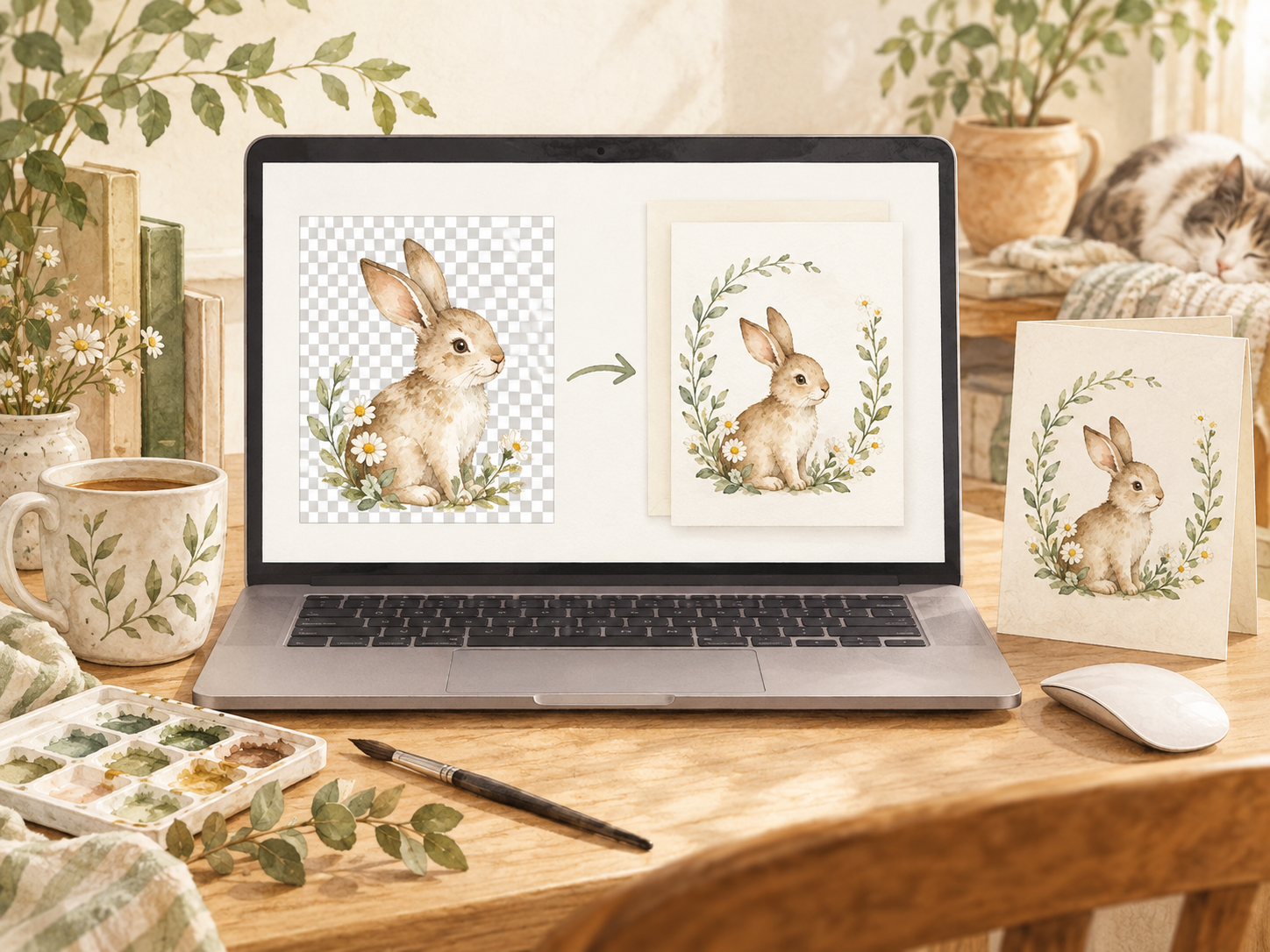
Canva is a great place to start if you are new to digital artwork because the process is very simple. Open your design, go to the Uploads section, and choose the option to upload files. From there, select the PNG file from your computer or device. Once the image appears in your uploads, you can click on it or drag it onto your design. You can then resize it, move it around, duplicate it, or layer it with other artwork. Because the background is transparent, the clipart should sit neatly on top of your design without a box around it.
How to Resize PNG Clipart
Resizing PNG clipart is usually as easy as clicking the image and dragging one of the corner handles. It is best to resize from the corners rather than stretching the image from the sides, because this helps keep the artwork from looking squished or distorted. High-resolution images can usually be made smaller without any problem. Making a very small image much larger, however, can sometimes make it look blurry or pixelated. That is why it is helpful to start with high-quality artwork, especially if you are planning to print your project.
What Does 300 DPI Mean?
You may see digital clipart described as 300 DPI. DPI stands for dots per inch, and it relates to image quality when something is printed. You do not need to understand all of the technical details to use clipart successfully. The simple version is that 300 DPI is considered a good quality for printing. If you are making cards, invitations, printable wall art, or other printed projects, high-resolution artwork will usually give you a cleaner and more polished result.
What Can You Make With PNG Clipart?
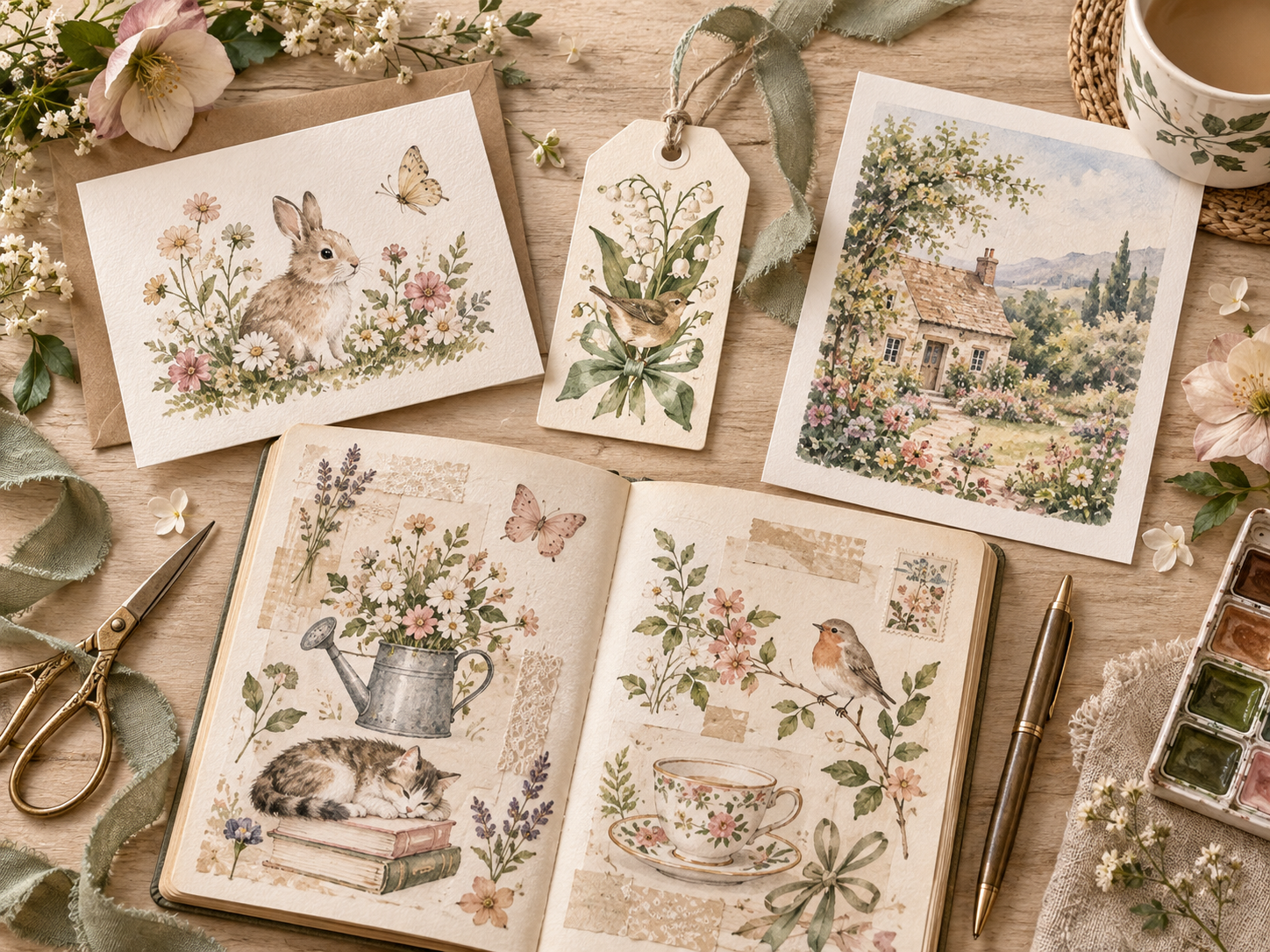
There are so many ways to use digital clipart, and you do not need to start with anything complicated. You can create greeting cards, gift tags, invitations, scrapbook pages, journal pages, planner pages, stickers, labels, classroom materials, printable wall art, and other digital designs.
You can also combine several pieces of clipart to create your own little scene. A rabbit can sit beside a cluster of flowers, a mushroom can be tucked into the corner, and a few leafy branches can be added around the edges. There is no single correct way to use clipart, and experimenting with different arrangements is part of the fun.
A Few Helpful Tips
It is always a good idea to keep a copy of your original files somewhere safe before you begin organizing or editing them. That way, if you accidentally change something or lose a file, you still have the original version to go back to. If you are planning to print your project, a small test print can also be helpful. Colors sometimes look a little different on paper than they do on a computer or tablet screen. A test print gives you a chance to make small adjustments before printing the final version.
When you are combining several pieces of artwork, try not to feel like you need to fill every bit of empty space. A little breathing room can make the design look more balanced and polished. Sometimes a simple layout works better than adding one more flower, mushroom, or rabbit just because there is room for it.
What About Commercial Use?
If you are using clipart for a personal project, you can usually begin creating right away. If you plan to sell something you make with the artwork, however, you should always check the artist or shop’s license first. Different shops can have different rules about commercial use. Some clipart may be for personal use only, while other artwork may allow you to use it in products you sell under certain conditions. Taking a minute to read the license before you begin can save you a lot of confusion later.
The Simple Version
If all of this still sounds like a lot, the simple version is this: a PNG is an image file that can have a transparent background. You download it, upload it into the program you want to use, resize it, move it into place, and start creating. Once you have used PNG clipart a few times, the process becomes very natural. Before long, you may find yourself with folders full of flowers, animals, mushrooms, seasonal artwork, and all sorts of little things you were absolutely sure you needed.
And that is really the fun of it. PNG clipart gives you a simple way to take artwork you love and turn it into something that feels like your own.
